Your game library
Add games, sort and favorite them, set covers, and use each game's menu for saves, info, cheats and more.
The library is the first thing you see when you open PokeDaisy: every game you've added, in the order you pick. Tap a game to play it.
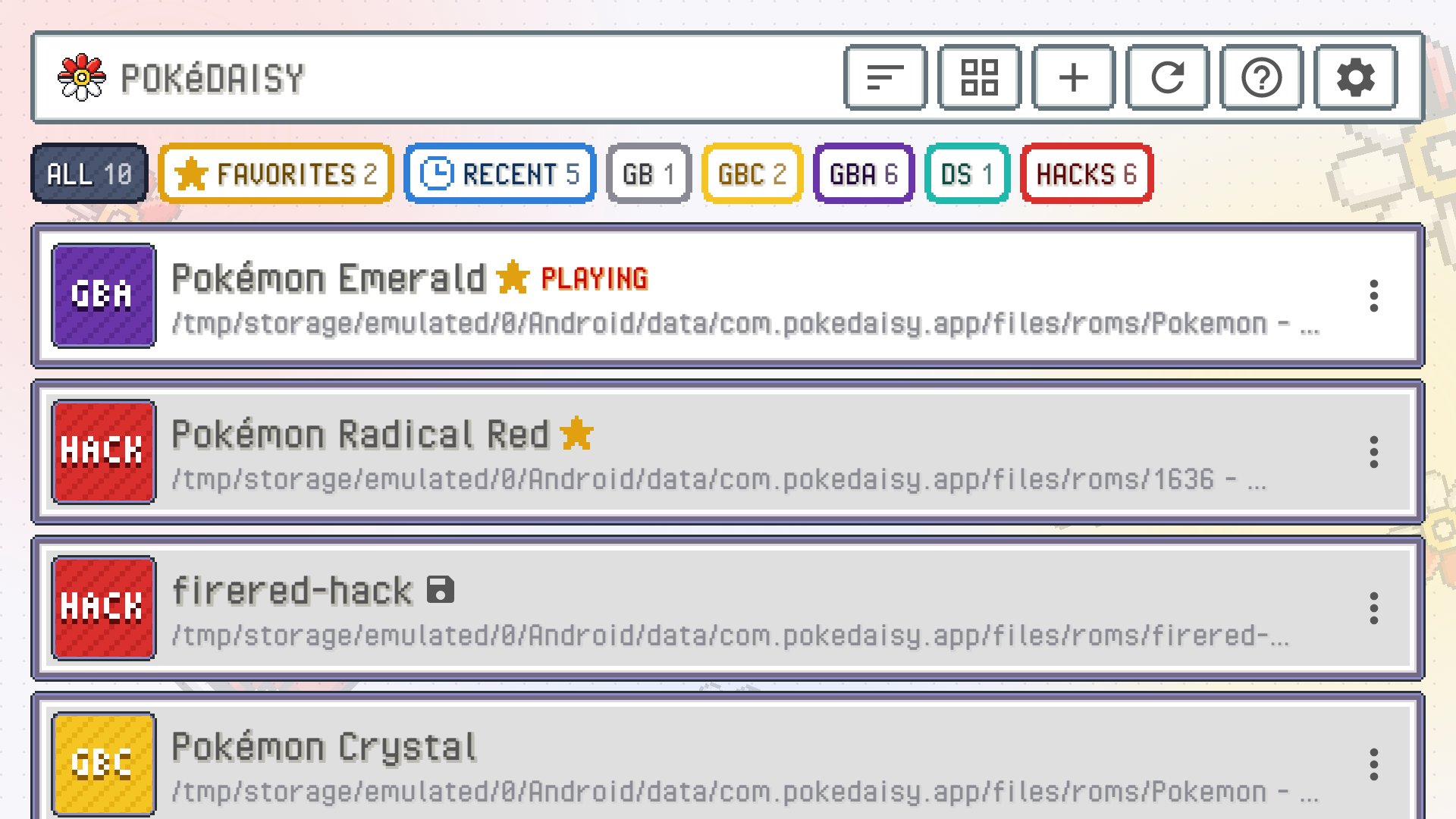
The buttons in the header, from left to right:
| Button | What it does |
|---|---|
| Sort | Picks the order of your games (see Sorting). |
| List / grid | Switches between a list (one game per row, with its file path) and a grid of covers. |
+ | Imports a game file. |
| Refresh | Looks through your ROMs folder again and tells you what it found. |
? | Opens this manual. |
| Gear | Opens Settings. |
The game you have open says PLAYING, and a small save icon next to a name means it has a save file.
Quick views
The row of coloured buttons under the header narrows the library down to one kind of game. Tap one to see only those games; the open one is filled with its colour. The number on each says how many games it holds.
| View | What it shows |
|---|---|
ALL | Every game. |
FAVORITES | The games you starred (see Sorting and favorites). |
RECENT | Every game you've played, the one you played last first, whatever the sort order. |
GB | Game Boy games. |
GBC | Game Boy Color only games. |
GBA | Game Boy Advance games. |
DS | Nintendo DS games. |
HACKS | ROM hacks. |
The console views and HACKS use the same colours as the covers of games without art (see Cover art), and each one only shows while your library has such a game. A hack is in HACKS and in its console's view too, so a FireRed hack shows under GBA as well.
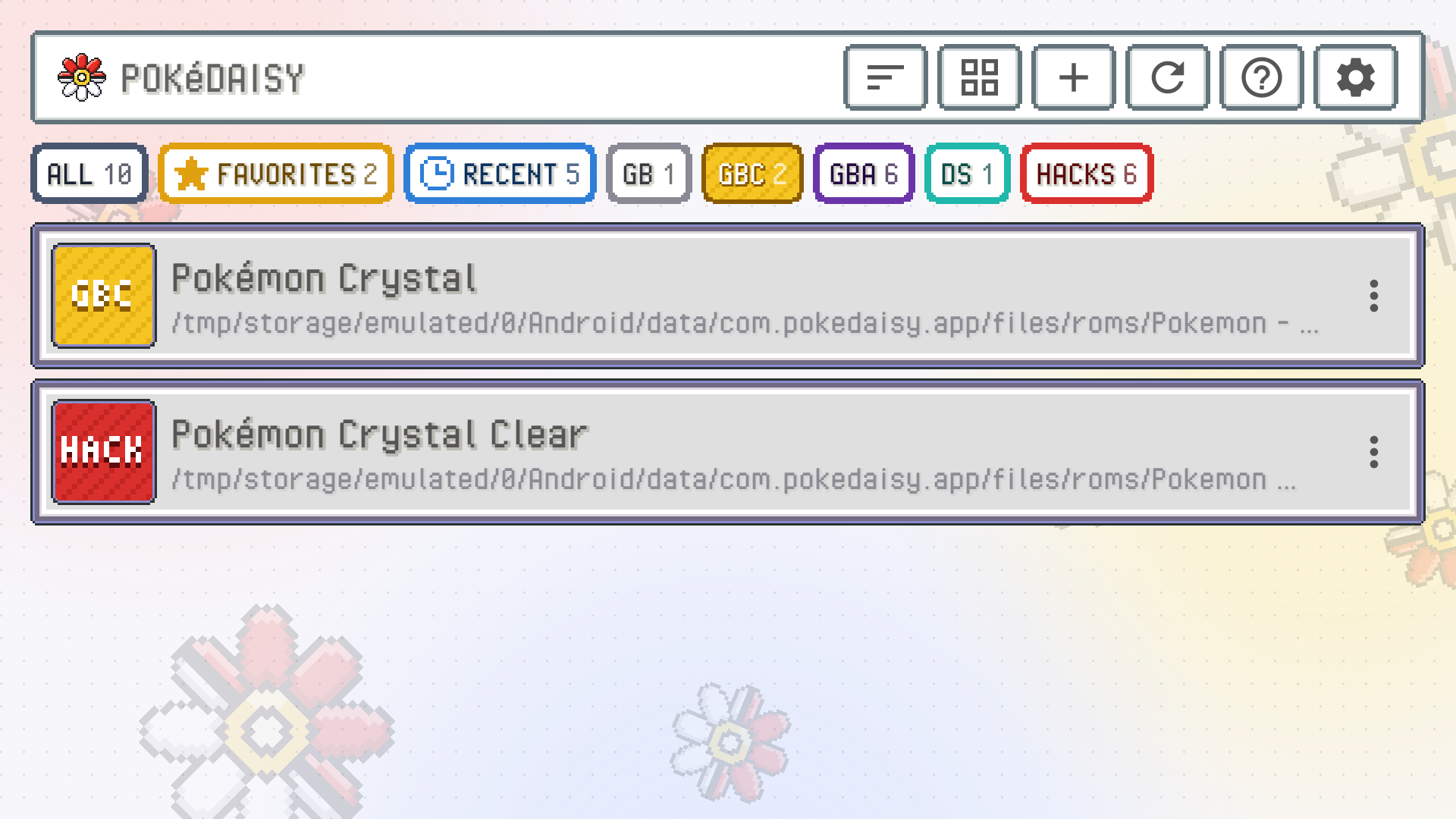
The library remembers the view you picked, also after you close the app. A view that has nothing yet tells you how to fill it.
Adding games
There are three ways to get games into the library. Use whichever suits you; they mix fine.
Link your ROMs folder
The easiest way if you already keep your games in a folder. Link it in first-time setup, or later in Settings > FOLDERS > ROMS FOLDER with CHOOSE FOLDER.
Every supported game in it shows up in the library.
Games are played right where they are. Nothing is copied, so they take no extra space.
The folder is checked for new games every time you come back to the library.
RESCAN(inFOLDERS) or the refresh button checks it now.UNLINKremoves the folder's games from the library. Your files stay where they are.
Games in a linked folder are your own files, so the library never deletes them. Their menu has HIDE instead of DELETE.
Import with +
Tap + in the header and pick a game file. PokeDaisy copies it into its own games folder and adds it to the library. If the file is zipped, it's unpacked as it's imported.
If the companion can't read the game, you're told it's NOT SUPPORTED and asked whether to add it anyway: the game still plays, only the companion won't show its party, map, items or battles.
Copy files into the app's folder
Games copied straight into Android/data/com.pokedaisy.app/files/roms/ on the device (with a file manager or from a computer) show up too. Tap refresh in the library after copying.
File types
.gbafiles, and Game Boy / Game Boy Color.gband.gbc.Zipped games,
.zipor.7z. In your ROMs folder they stay zipped: PokeDaisy reads the game out of the archive when you play it. A zipped game's save is named after the game inside the archive, the way RetroArch does it.
Game names
PokeDaisy recognizes the games it supports and shows their proper names ("Pokémon FireRed", "Pokémon Unbound") whatever the file is called. Other games show their file name, tidied up: dump tags like (USA, Europe) and numbering are dropped.
To call a game something else, use RENAME in its menu. It only changes what the library shows; the file keeps its name, so its save is still found.
Sorting and favorites
Tap the sort button and pick under SORT BY:
NAME: A to Z.LAST PLAYED: the game you played most recently first. Games launched from a frontend count too.DATE ADDED: the newest arrivals first.
Favorites always come first, whatever the order. To make a game a favorite, open its menu and tap FAVORITE at the top; it gets a gold star next to its name. UNFAVORITE takes it off.
A game that appeared in the last 24 hours wears a green NEW tag. Games that were already in your library when you set PokeDaisy up (or when you linked a folder) don't get one, so the tag only marks real arrivals.
The game menu
Long-press a game, in the list or the grid, to open its menu. In list view, the three dots at the end of a row open it too.
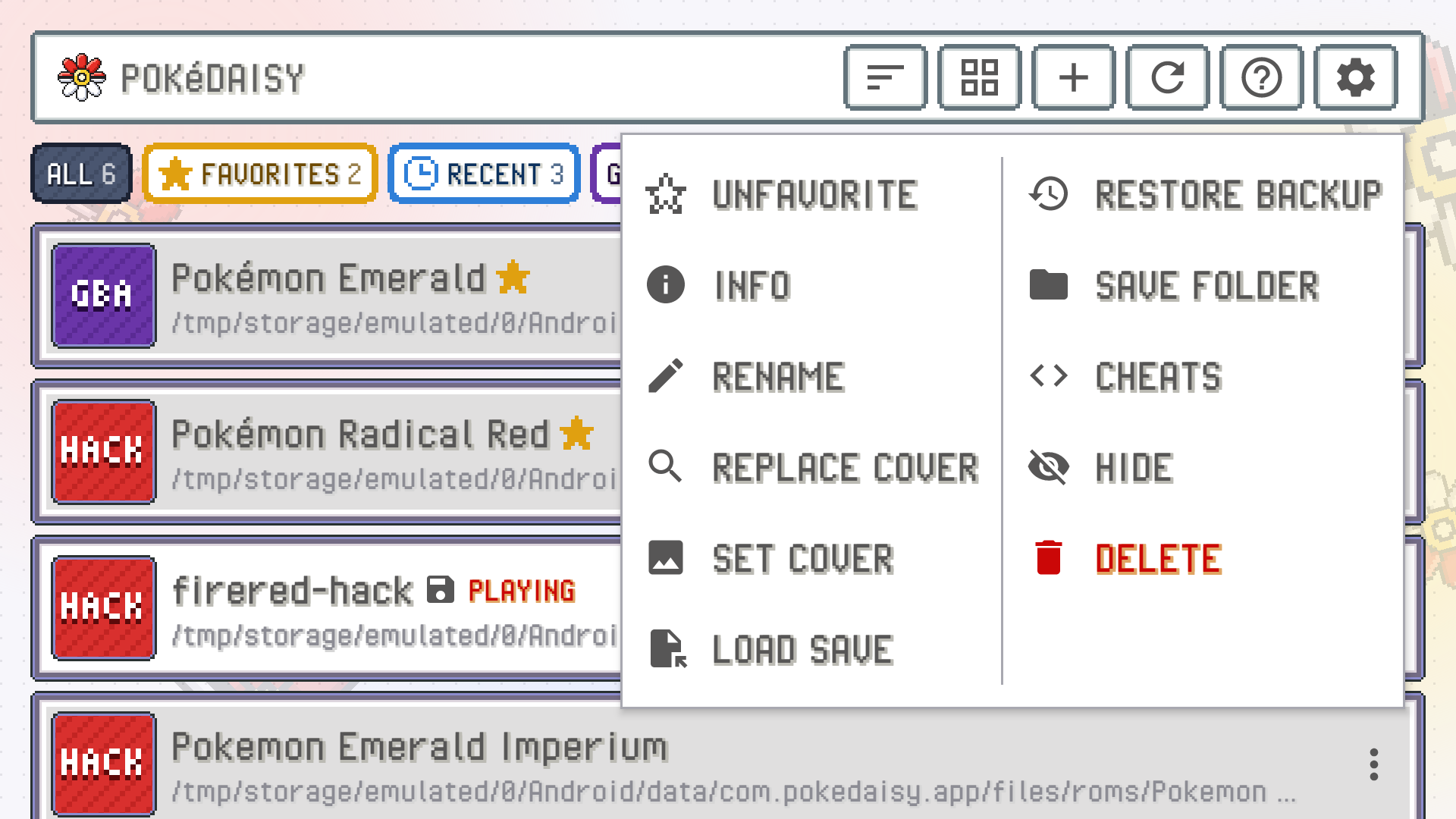
| Entry | What it does |
|---|---|
FAVORITE / UNFAVORITE | Pins the game to the top of the library with a gold star, or takes it off. |
INFO | Everything about the game, its save and its save states (see Game info). |
RENAME | Changes the name the library shows. |
REPLACE COVER | Opens the cover picker (see Cover art). |
SET COVER | Uses an image from your device as the cover. |
RESET COVER | Goes back to the automatic cover. Only shows after you picked one yourself. |
LOAD SAVE | Puts another save file into the game. Your current save is kept as a dated copy. |
RESTORE BACKUP | Brings back one of the automatic save backups. |
SAVE FOLDER | Gives this game its own save folder, such as another emulator's. |
DEFAULT SAVE FOLDER | Goes back to the usual save folders. Only shows after you set a SAVE FOLDER. |
CHEATS | Opens the game's cheat codes in Settings. See Cheats. |
HIDE | Takes the game off the library without touching any files. |
DELETE | Deletes the game file. Saves and save states are kept. Only for imported games, never your linked folder's. |
LOAD SAVE, RESTORE BACKUP and SAVE FOLDER are explained in Saves, backups and save states.
If the menu doesn't fit the screen's height, it spreads over two columns.
Hidden games
HIDE is for games you want out of the way, like a hack you've finished or a duplicate. The game disappears from the library, but its name, cover and saves are all kept.
To bring one back, open Settings > HIDDEN GAMES and tap the game (SHOW), or tap SHOW ALL.
Cover art
Covers come from two free services, and you need your own free key for each one you want to use. Add them in first-time setup or in Settings > COVER ART:
RetroAchievements WEB API KEY: square box art for every game that has an achievement set. This is tried first.SteamGridDB API KEY: icons for FireRed, Emerald and the supported hacks, used where RetroAchievements has no art.
Tap GET KEY next to either one to open the page where your key is, copy it, paste it in the box and tap SAVE. PokeDaisy fetches a cover for each game once and keeps it on the device. REPLACE ALL fetches fresh covers for every game, replacing the ones you have (including ones you picked yourself). CLEAR removes the keys.
A game with no cover shows what kind of game it is instead, in pixel letters on its own colour: GB (grey) for a Game Boy game, GBC (yellow) for a Game Boy Color only one, GBA (purple) for a Game Boy Advance game, NDS (teal) for a DS game, or HACK (red) for a ROM hack.
Pick another cover
Don't like the cover a game got? Open its menu and tap REPLACE COVER. The picker shows every icon it found for the game; tap one to use it. If the game isn't found under its name, type another name in the search box and tap SEARCH. You need a key saved for the picker to find anything.
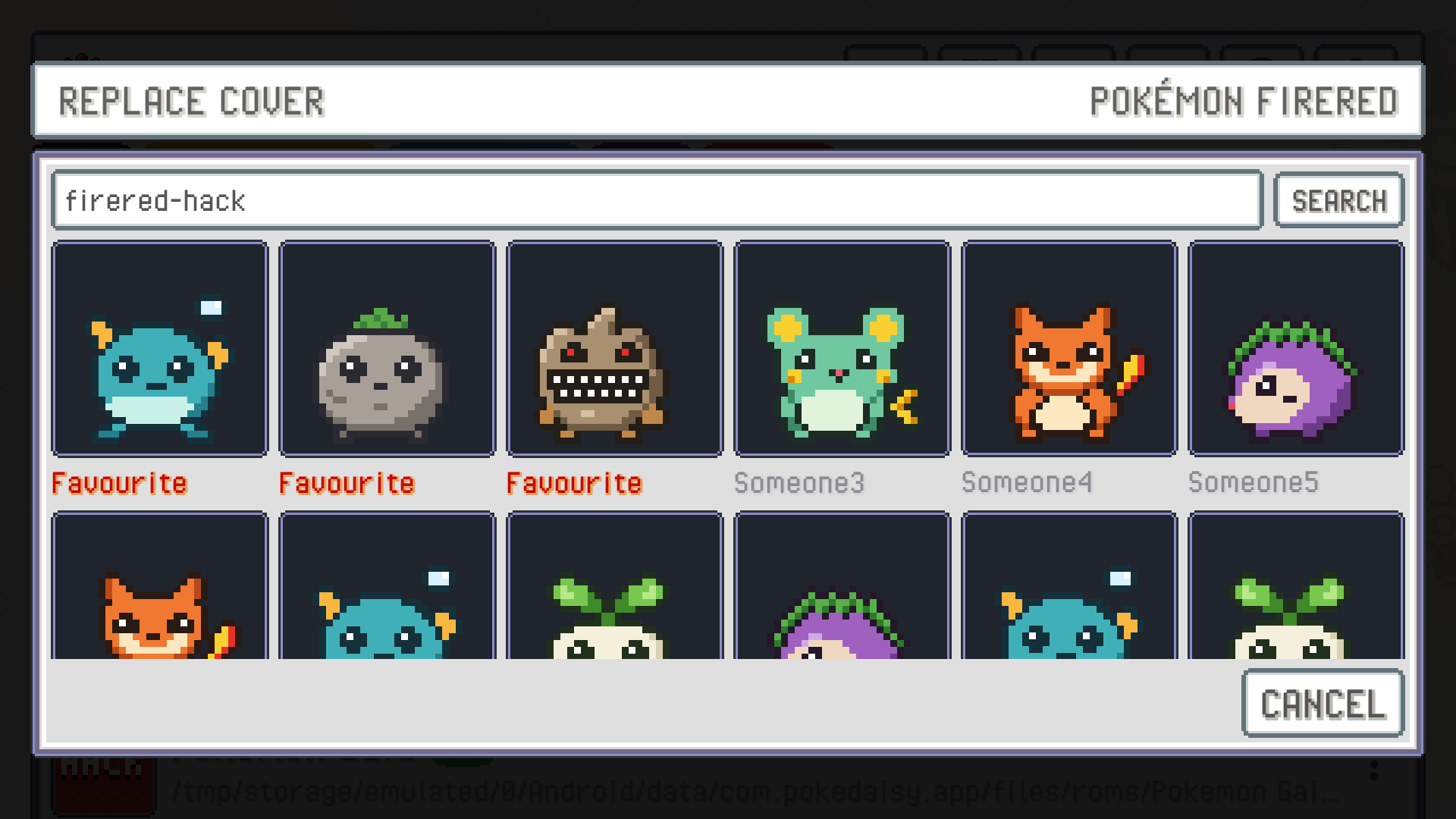
To use your own image instead, tap SET COVER in the menu and pick a picture from your device.
The dual-screen launcher
On a device with two screens, the library is made for buttons. It's the same library: the quick views at the top, then the open view's games as a list or a grid (the view button in the header switches), each row with where its file is.
The D-pad moves a cursor through it: up and down a row, left and right along a row of the grid. Up from the top of the list reaches the quick views: left and right open the next view, and down, A or B go back to the games. Up once more reaches the header's buttons (sort, view, import and the rest); A presses one, down or B goes back. L and R jump a page. A small legend in the corner reminds you of the rest:
A opens the game.
B opens the game's menu (the same entries as a long press). Whatever an entry opens, like
INFO, B takes you back to the menu.Y opens Settings.
With the touch screen, a tap on a game opens it straight away, and a long press opens its menu.
Prefer the library without the cursor and legend? Turn off DUAL-SCREEN LAUNCHER in Settings, in the LIBRARY group.
Game info
INFO in a game's menu shows what PokeDaisy knows about it, in sections:
GAME: its name, which game it was recognized as, whether the companion supports it (
SECOND SCREEN), when you last played it and where its cover came from.ROM: the file, its folder, where it came from, its size and the game code from its header.
SAVE FILE: where the save is (or where it will be, before the game's first save) and how many backups there are.
SAVE STATES: how many of the 10 slots are used, the newest one and the resume state.
RetroAchievements: whether the game has an achievement set, and how many you've earned if you're signed in.
For a game the companion doesn't support, ASK FOR SUPPORT opens a game request on the PokeDaisy website with the file's name, size and fingerprint filled in. The ROM itself is never sent.
Supported, partly supported and not supported
Every game plays, but the companion only reads the games it knows. The library tags the rest:
NOT SUPPORTED: the game plays, and the companion shows a notice instead of its tabs.PARTIALLY SUPPORTED: a ROM PokeDaisy matched to a game it knows. The party, bag, map and battles work, and whatever didn't match is switched off.
From a linked folder, the library lists the supported games plus any unsupported hacks of FireRed, LeafGreen, Emerald, Ruby or Sapphire (tagged), so you can try them. When PokeDaisy can't tell which game a ROM is built on, INFO has PICK A GAME to tell it, and FORGET MATCH to undo a match. Supported games has the full list and explains how matching works.
Using a D-pad or controller
The library works without touching the screen. Move with the D-pad; the selected game or button gets an orange outline. Press up from the top row of games to reach the quick views, and up again for the header's buttons.
Launching from a frontend
If you use a frontend like ES-DE, iiSU or Cocoon to browse all your games, it can start your GBA games straight in PokeDaisy, skipping the library. When you leave the game (hold BACK, or the exit hotkey), you're back in the frontend.
In the frontend, add PokeDaisy as a custom or standalone emulator for GBA with these values:
| Field | Value |
|---|---|
| Package | com.pokedaisy.app |
| Activity | com.pokedaisy.app.LaunchActivity |
| Action | android.intent.action.VIEW |
| Data | the ROM (the frontend's ROM placeholder) |
A few things to know:
With All files access allowed, the game is played from where the frontend keeps it. Otherwise it's copied into PokeDaisy's games folder once and reused after that.
Saves are found by the ROM's file name in your save folders, as usual. To share saves with the frontend's emulator, add its save folder in Settings >
FOLDERS(see Saves, backups and save states).Starting another game from the frontend while one is open switches to it; the open one is suspended first.
There are step-by-step guides for ES-DE and iiSU. Cocoon only lists emulators from its own list, so PokeDaisy shows up there once Cocoon adds it.
Something wrong or missing here? Edit this page on GitHub or tell us.