Install and first setup
Download the app, install it, go through the five setup steps and keep it up to date.
PokeDaisy isn't on the Play Store. You install it from its GitHub page as an APK file, and the app then keeps itself up to date. The whole thing takes a few minutes.
Download and install the APK
On the device, open the latest release in a browser.
Under Assets, tap
PokeDaisy-<version>.apkto download it.Open the downloaded file (from the browser's download notice, or your file manager's Downloads folder).
If Android says it isn't allowed to install apps from this source, tap through to its settings, allow it for your browser or file manager, and go back. Then tap Install.
Open PokeDaisy.
First-time setup
The first time you open PokeDaisy with an empty library, it shows WELCOME TO POKéDAISY: five short steps, numbered 1 / 5 to 5 / 5 in the corner. Every step is optional. The button at the bottom right says SKIP until you've chosen something, then NEXT, and DONE on the last step. BACK goes to the previous step.
Everything you pick here can be changed later in Settings, so don't overthink it.
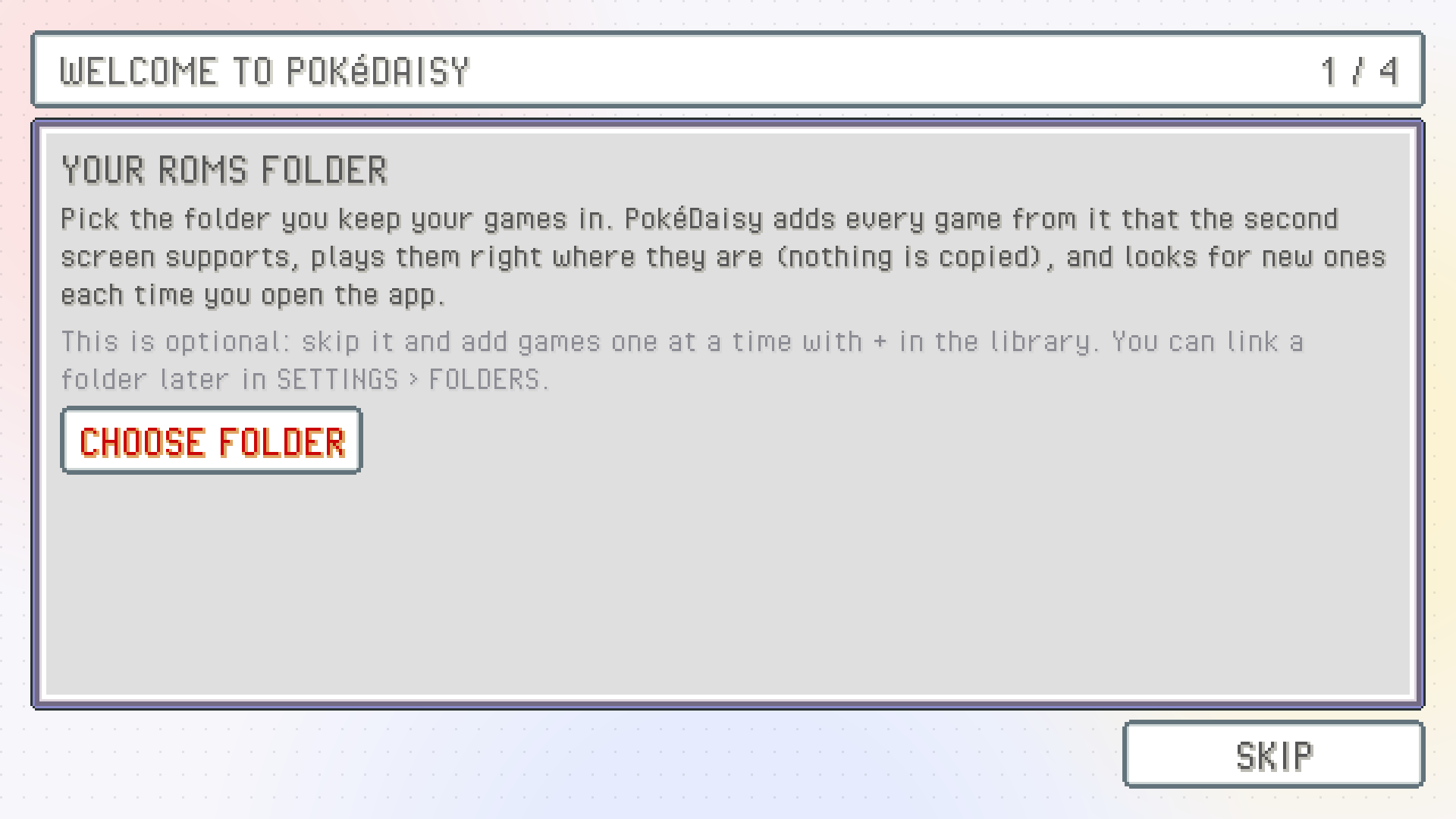
Step 1: your ROMs folder
If you keep your games in one folder (say ROMs/gba), point PokeDaisy at it here. Tap CHOOSE FOLDER and pick the folder. PokeDaisy looks through it (LOOKING FOR GAMES…), then lists what it found under FOUND 3 GAMES or similar.
Games in this folder are played right where they are: nothing is copied. Every time you come back to the library, the folder is checked again for new games, so adding a game later is a matter of dropping it into the folder.
Skip this step if you'd rather add games one at a time with the + button in the library. Your game library explains both ways.
Step 2: game saves
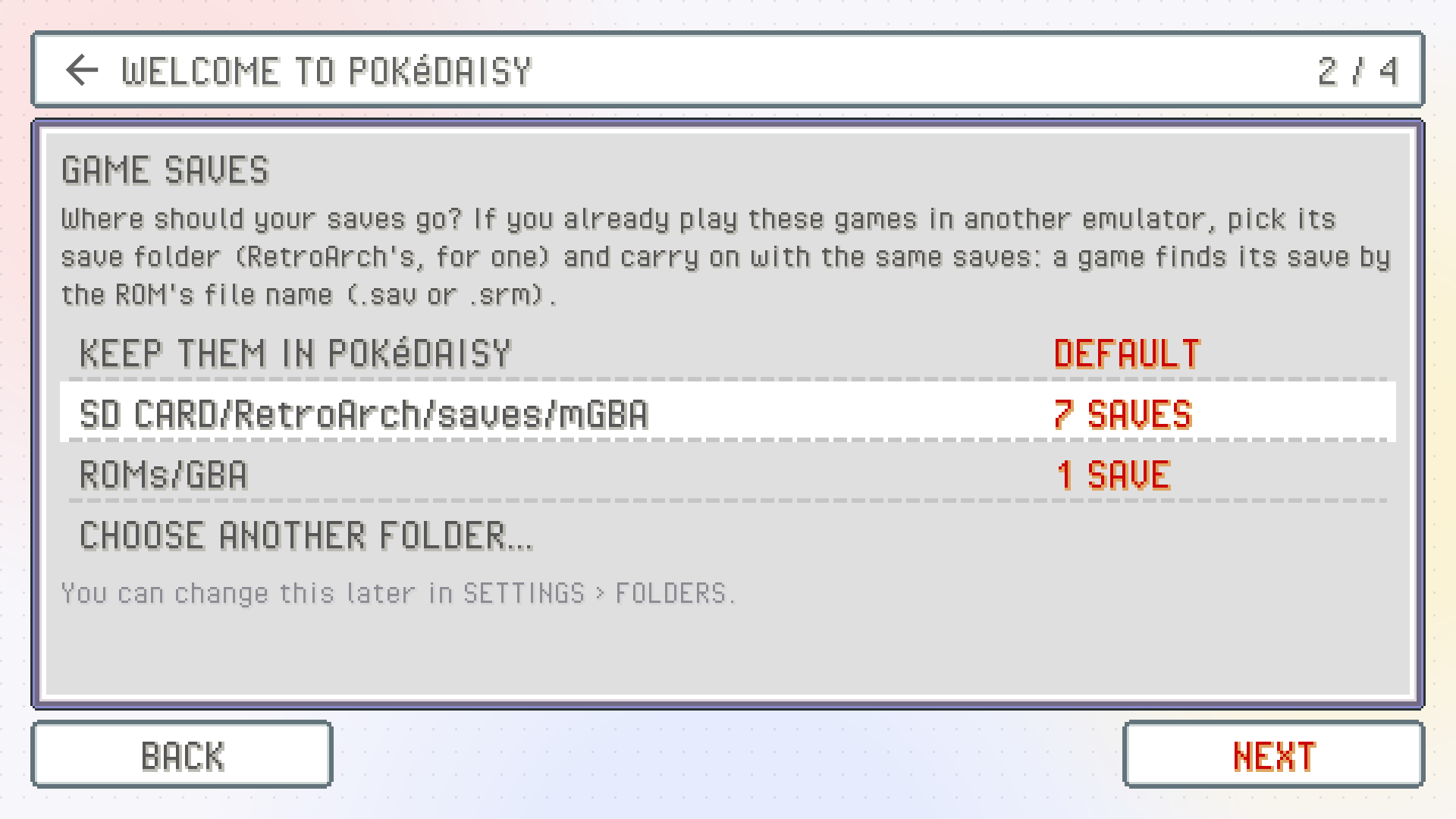
This decides where your save files go. Your choices:
KEEP THEM IN POKéDAISY(the default): saves go in the app's own folder.A folder that already has saves in it. PokeDaisy lists any folder it finds with
.savor.srmfiles, with how many saves are in each: your ROMs folder (and asavesfolder inside it), and RetroArch's save folders (such asRetroArch/saves/mGBAorRetroArch/saves/gpSP) on the device and an SD card.CHOOSE ANOTHER FOLDER…to pick any other folder.
If you already play these games in another emulator, pick its save folder and carry on with the same saves. A game finds its save by the ROM's file name, so Pokemon Emerald.gba uses Pokemon Emerald.sav (or .srm). Saves, backups and save states has more on sharing saves.
Step 3: game buttons
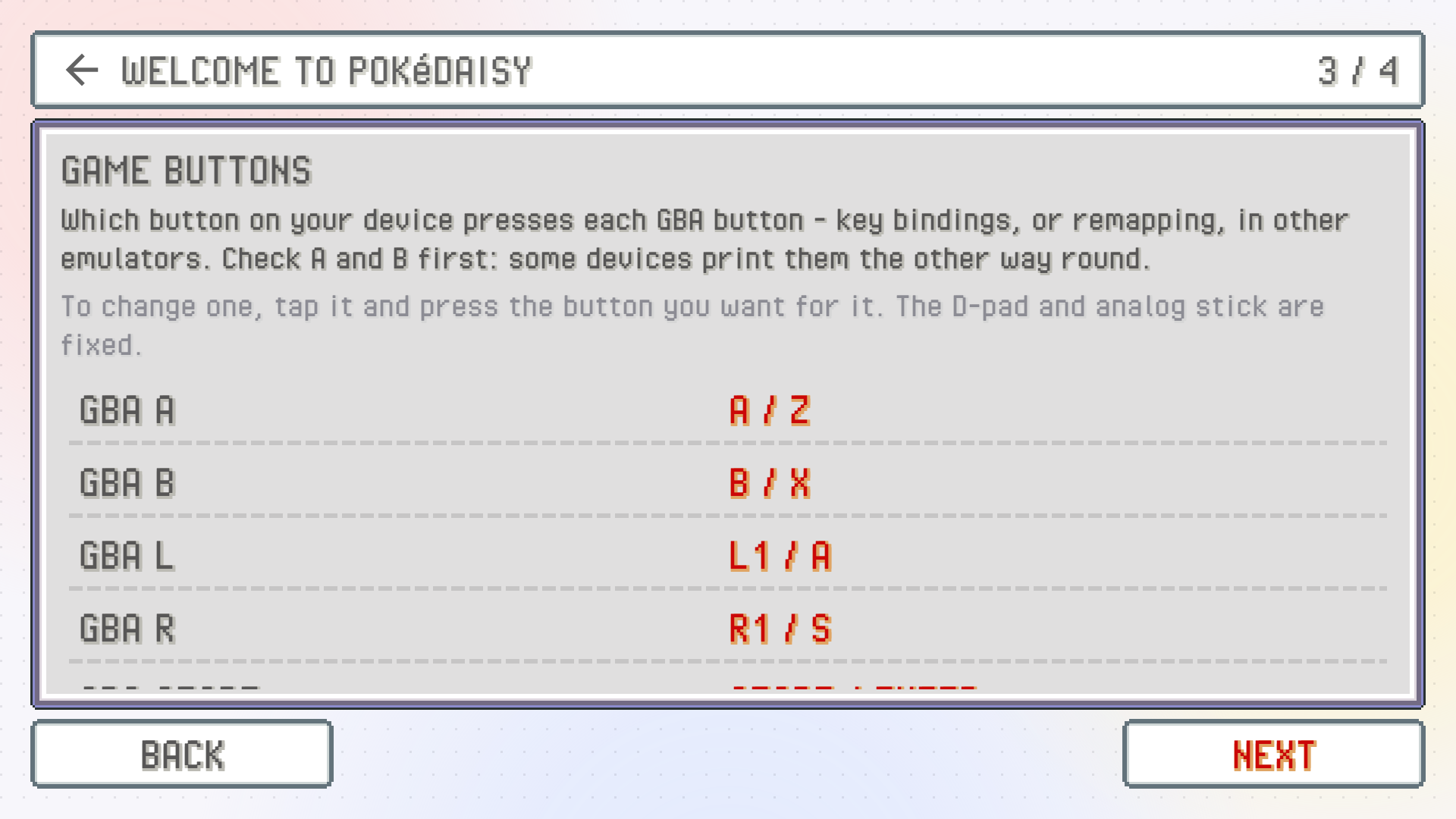
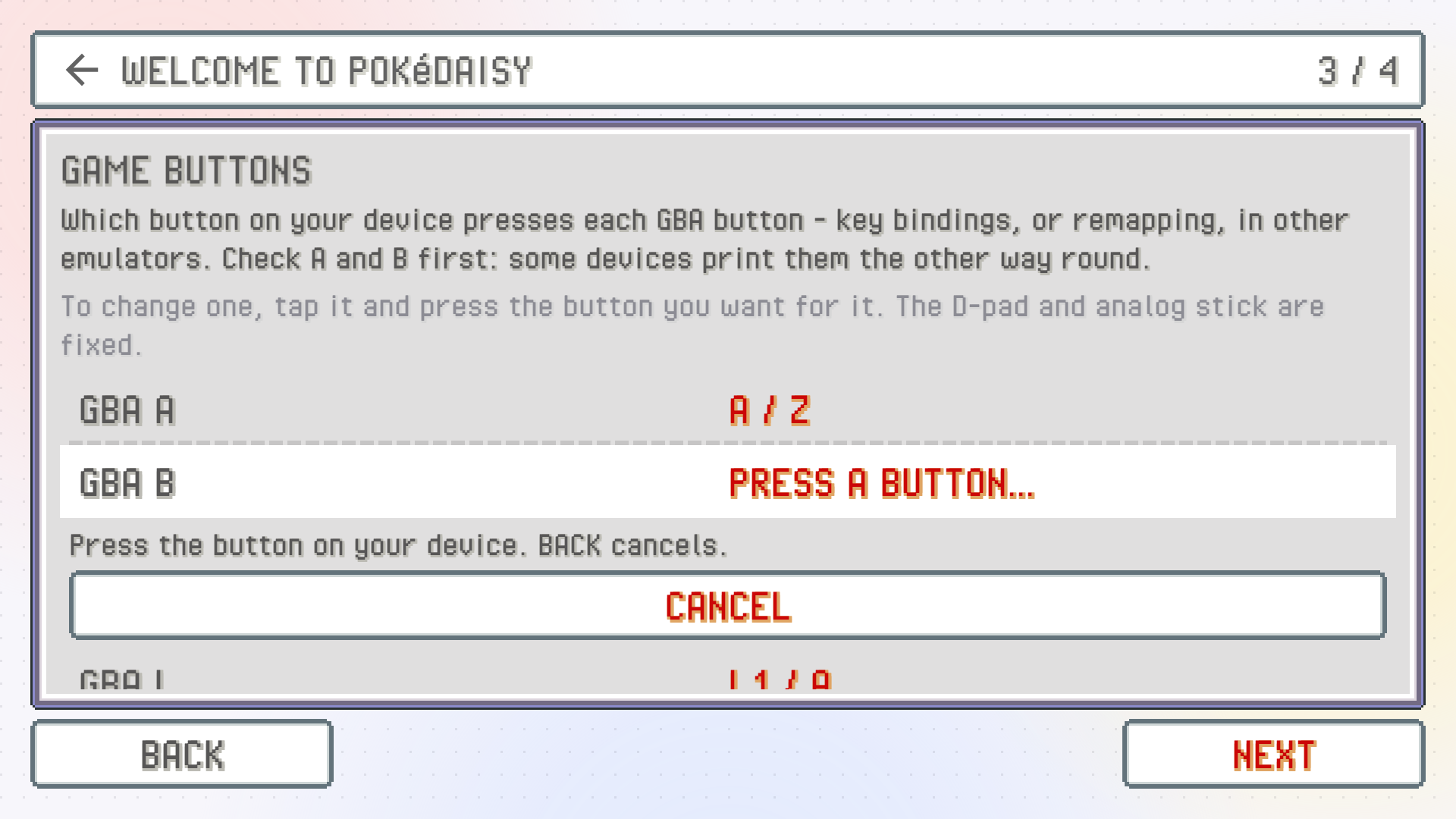
This page shows which of your device's buttons presses each GBA button. Check A and B first: some devices print them the other way round from what you'd expect. If anything's off, tap that GBA button's row and press the button you want for it, right there on the page. CANCEL, or BACK, leaves it as it was.
Step 4: cover art
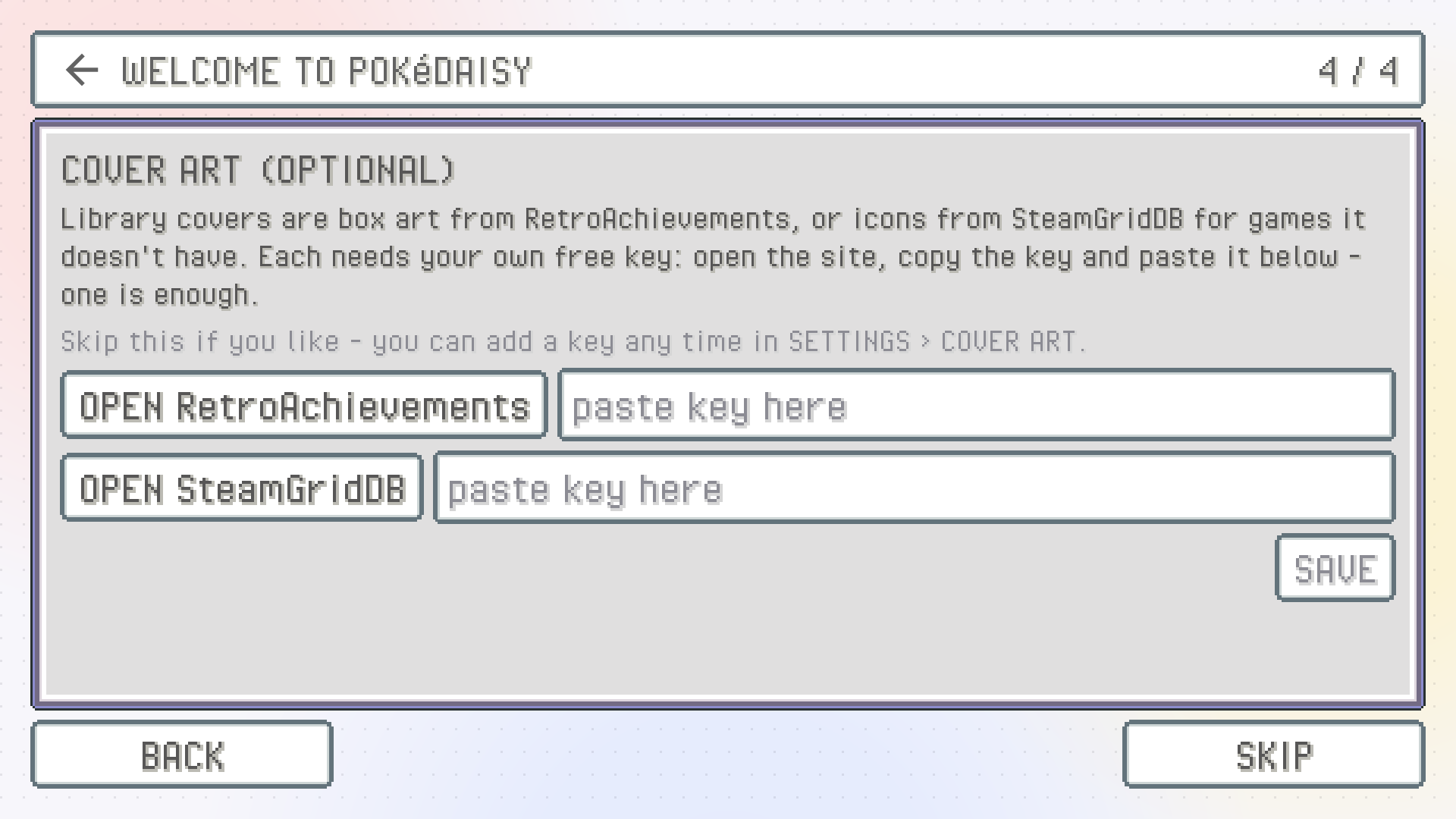
The library looks much better with box art. Covers come from two free services, and each needs a key you get from your own free account:
RetroAchievements box art: tap
OPEN RetroAchievements, copy your Web API key from the page that opens (it's on your RetroAchievements settings page) and paste it in the box beside the button.SteamGridDB icons, for games RetroAchievements has no art for: tap
OPEN SteamGridDB, copy your API key and paste it in the box beside that button.
One key is enough. Tap SAVE and PokeDaisy fetches covers for your games (FETCHING…). Skip it now and add a key any time in Settings > COVER ART.
Run setup again
Open Settings (the gear in the library's header) and tap RUN SETUP at the bottom, in the APP group. Setup opens over the library; BACK on the first step takes you back to Settings.
All files access
When you pick a folder (your ROMs folder, a saves folder, a game's own save folder), Android 11 and newer first ask you to allow PokeDaisy All files access. The app needs it to open games and saves by their path, wherever they are on the device, so it can play games from your folder without copying them and write saves where another emulator will see them.
Android opens its own page for it: turn it on and come back. Setup picks up where you left off.
If you don't allow it, PokeDaisy still works: import games with + and keep saves in its own folder.
After setup
A couple of one-time windows may show up in the library over the next few opens:
NEW: EXPANDoffers to turn on EXPAND, which draws the map past the game's edges so the whole top screen is the game.TURN ONorNOT NOW; it's in Settings >ASPECTeither way. See Screen, aspect and shaders.CRASH REPORTS?asks, once, whether the app may send a report when it crashes. It's off unless you say yes, and you can change it any time in Settings >CRASH REPORTS.
Then pick a game and play. Your game library is the next page.
Updates
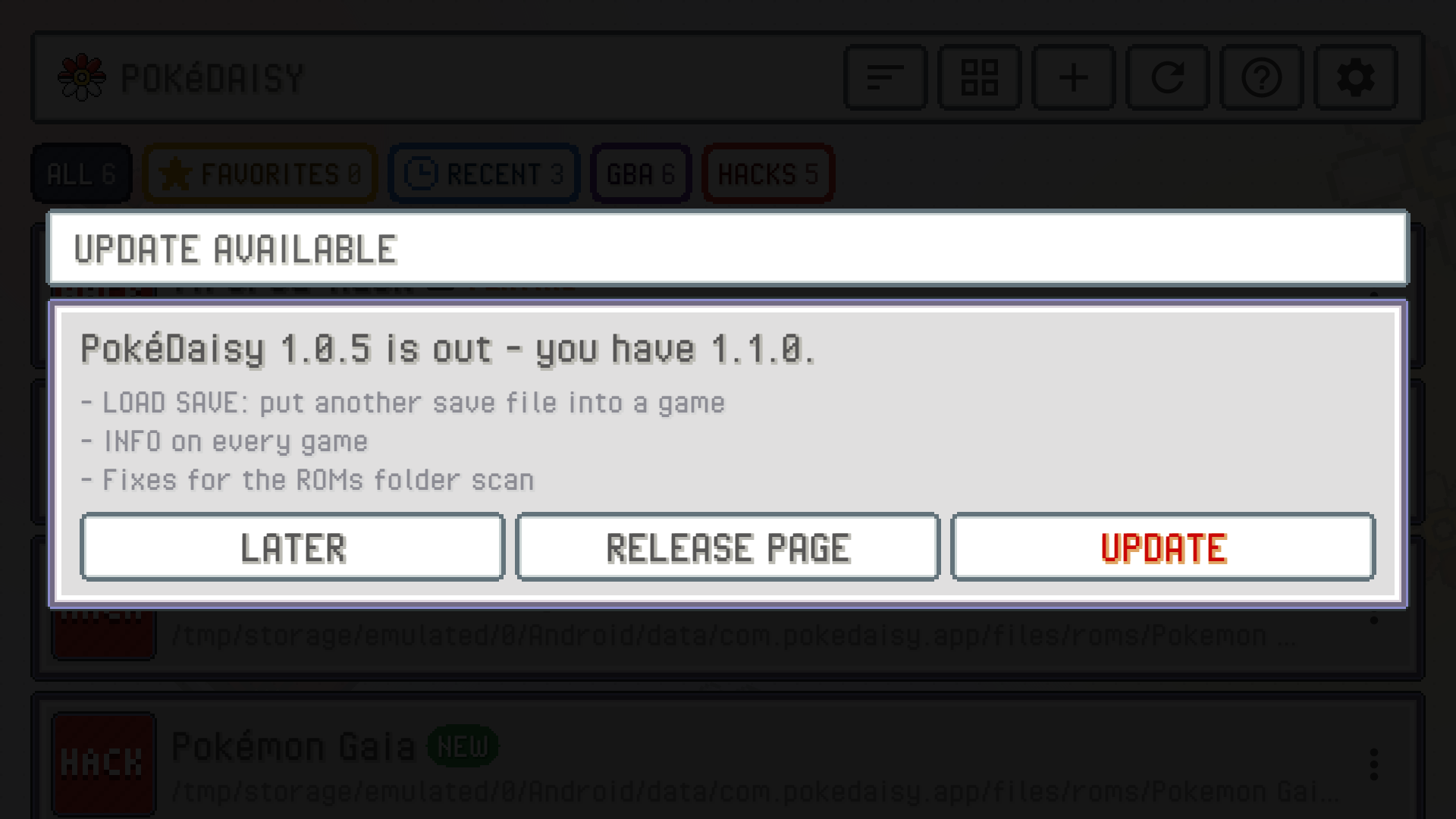
PokeDaisy checks for a new version each time you open the library. When there is one, it shows UPDATE AVAILABLE with what's new:
UPDATEdownloads the new APK and opens Android's installer. Tap Update there. If Android asks to allow installs from PokeDaisy, allow it and go back.RELEASE PAGEopens the release on GitHub.LATERputs it off until the next time you open the library.
Updating keeps everything: your library, saves, states and settings.
To check right now, open Settings and tap VERSION (in the APP group). It shows the version you have, and tapping it looks for a newer one.
Something wrong or missing here? Edit this page on GitHub or tell us.