The companion at a glance
What the bottom screen shows, how the tab bar works, and what the companion's SETTINGS tab holds.
The companion is everything on the bottom screen while a game runs. It reads your game as you play, so your party, bag, location and battles are always up to date without opening a single menu on the top screen. It's drawn in the game's own menu style: FireRed's party screen in FireRed, Emerald's in Emerald, and each supported hack's own look where it has one.
You don't have to do anything to start it. Open a supported game and the companion fills in once the game has loaded. On a device with only one screen it lives in a panel beside the game instead (see Devices).
The tabs
Along the bottom of the companion is a row of tabs, with MORE (a grid of nine squares) and the SETTINGS gear at its right end. Out of the box you get:
| Tab | What it shows |
|---|---|
PARTY | Your team, and a full summary for each Pokémon. See Party and summaries. |
DEX | Your Pokédex with seen and caught marks. See Pokédex. |
MAP | The region map with you on it. See Map. |
BAG | Every pocket of your bag. See Bag. |
GUIDE | Hints, the next boss and what's around you. See Guide. |
A few more are off the bar to begin with and wait under MORE: CARD (your trainer card), STATES (save states) and CHEEVOS (RetroAchievements).
Some tabs only appear when the game has what they need. DEX needs the game's Pokédex data and GUIDE needs a guide for that game, so a game without them has fewer tabs. The bag tab also takes the game's own word for it: PACK in Gold, Silver, Crystal, Crystal Clear and Prism, CUBE in Unbound, INVENTORY in R.O.W.E., POCKETS in Super Mariomon, BAG everywhere else.
Before you're in the game
While the game is still on its title screen, its intro or the CONTINUE menu, PARTY, BAG, MAP and CARD wait: they show the game's own empty party slots with PRESS START blinking, rather than whatever party the game has loaded so far. They fill in as soon as you're walking around or in a battle. A game resumed from where you left it is in the game already, so they show right away. STATES, SETTINGS and the rest work the whole time, so you can still load a save state from the title screen.
Choosing your tabs
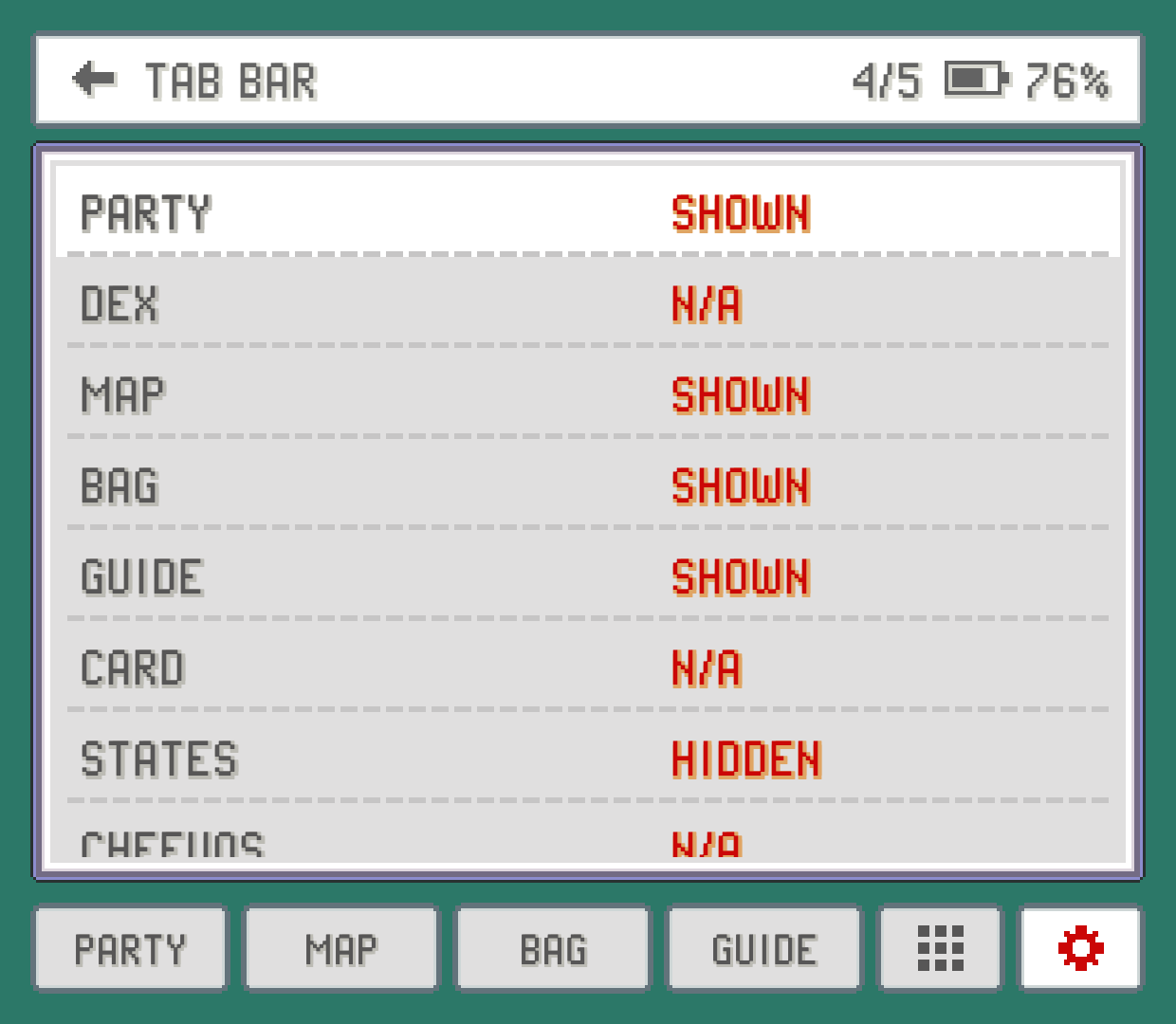
Up to five tabs fit next to the gear. To pick them, open SETTINGS and tap TAB BAR in the COMPANION group, or tap the TAB BAR button at the bottom of MORE. Each tab there says SHOWN or HIDDEN; tap one to flip it. The title counts how many you've placed (for example 5/5). If the bar is full, hide one first. Tabs always sit in the same order on the bar, whichever you pick. When the game you're playing doesn't have one of your tabs (a game with no DEX, say), its place goes to one of the game's other tabs, so the bar stays full whenever the game has enough.
Your choice is shared by every game. A tab the running game doesn't have shows N/A and keeps its setting for the games that do.
Tabs that aren't on the bar
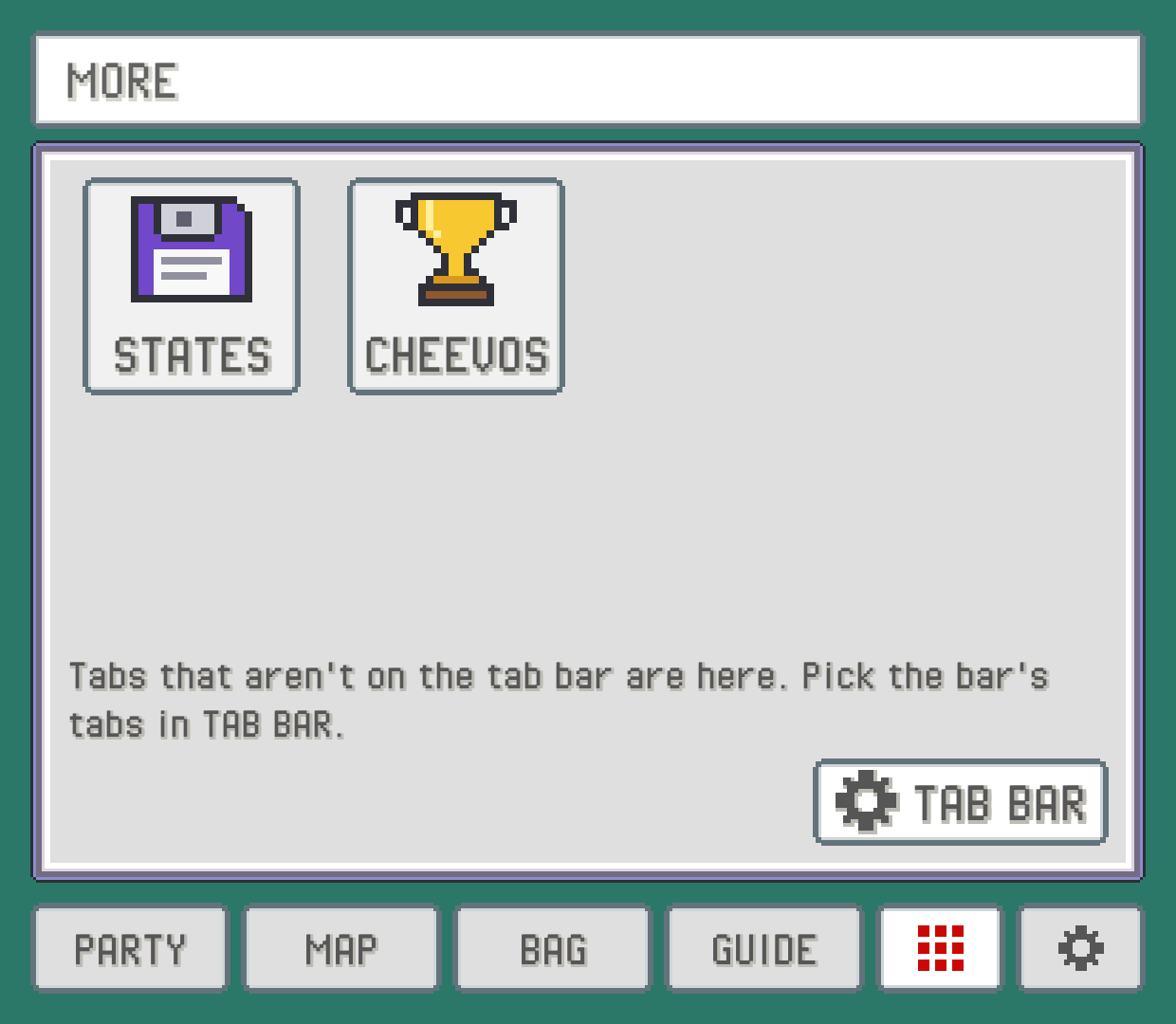
Hidden tabs are still one tap away. Tap MORE, left of the gear: every tab you left off the bar is there as an app, with a coloured icon and its name. Tap one to open it. While it's open MORE stays lit, and BACK takes you back to it.
Under the icons, a line reminds you that you pick the bar's tabs yourself, and the TAB BAR button takes you straight to that page in SETTINGS. When every tab the game has is on the bar, MORE isn't shown.
The BATTLE tab
When a battle starts, a BATTLE tab appears at the front of the bar and opens by itself. To make room, the last of your chosen tabs steps aside until the battle ends. When the battle is over, the tab you had open before comes back. Everything about battles is on the Battles page.
If you'd rather stay where you are when a battle starts, turn off JUMP TO BATTLE in TWEAKS (below): the BATTLE tab still appears, but doesn't open on its own.
The BACK button
The device's BACK button works for the companion, from either screen:
Tap BACK to go back one step in the companion: close a summary, a pick-list, a pop-up window or a sub-page of SETTINGS, or return from a tab you opened from
MORE.Hold BACK to leave the game.
On a controller, the HOME or guide button does the same as a BACK tap unless you've bound it to something else.
Button sounds
Companion buttons play your game's own menu click, recorded from the ROM itself, so they sound like the game. Buttons that press the game's buttons for you (the battle buttons, for example) stay quiet, because the game makes its own sound. There's no vibration. To turn the clicks off, switch CLICK SOUND to OFF in SETTINGS.
The SETTINGS tab
The gear opens the companion's SETTINGS, laid out like FireRed's OPTION screen. The title shows the game's name and your battery. Tap a row to change it: on / off rows flip, rows with more choices open a short list to pick from, and rows with an arrow at their right end open a page of their own. SETTINGS remembers where you were, so a trip to another tab and back lands on the same row.
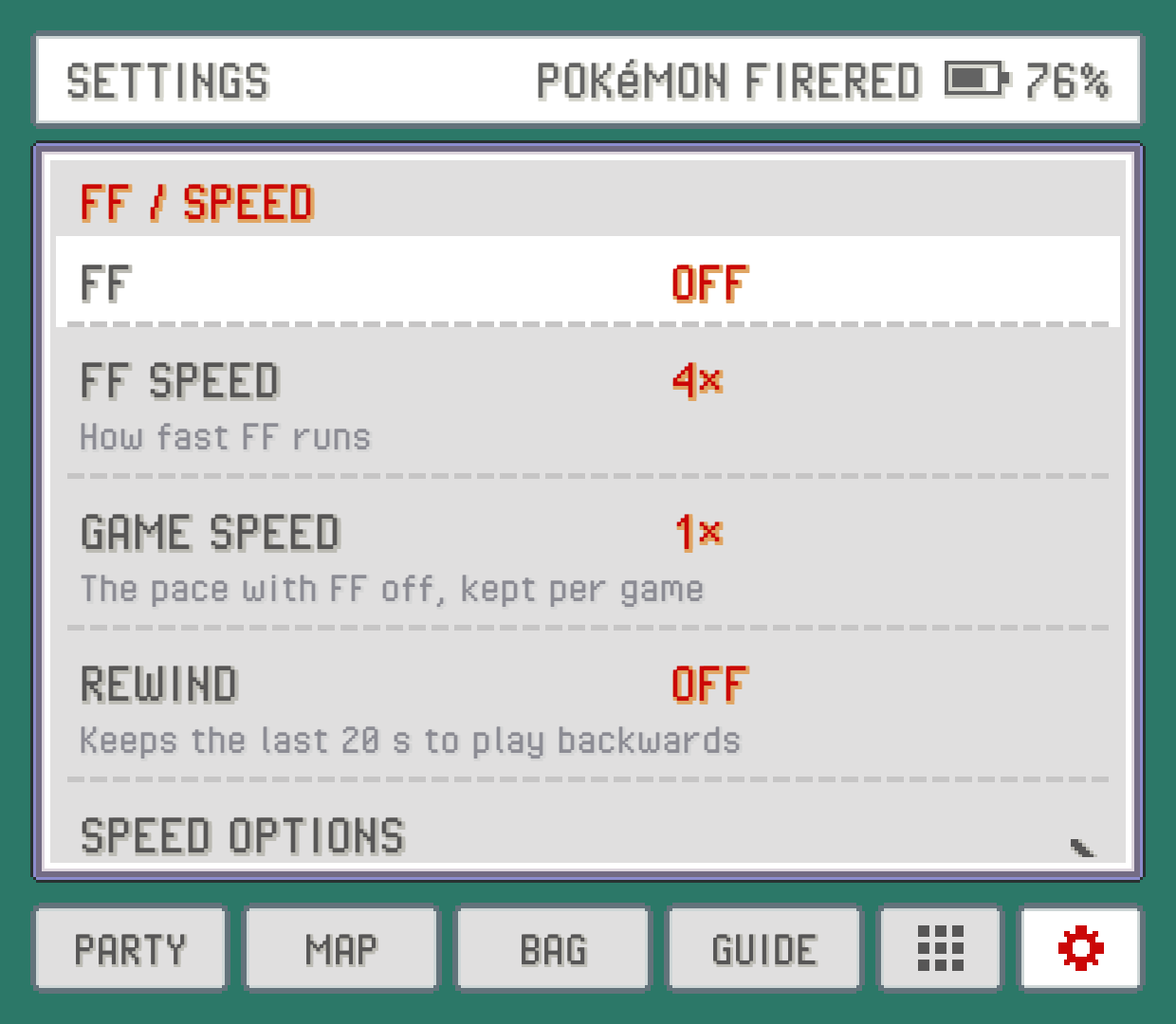
The options come in groups, the ones you change while playing first:
FF / SPEED:
FF,FF SPEED,GAME SPEED,REWINDandSPEED OPTIONS(a page withSCENE SPEEDS,FF MODEandFF MUSIC). See Fast-forward.GAMEPLAY:
WILD ENCOUNTERS,REUSABLE TMS,AUTO-RUN,RUN INDOORSandCHEATS. See Controls, Bag and Cheats.SCREEN:
ASPECT,HUD,DISPLAY OPTIONS(a page withSTATUS BAR,SHADERS,OVERLAYandLIGHT COMPANION),DARK MODE,FPS / CPUand, depending on your device,BATTLE BUTTONS,COMPANION VIEW,COMPANION BUTTON,SWAP SCREENSorSINGLE SCREEN. See Screen and display.COMPANION:
BATTLE HINTS,ONE-TAP MOVES,FOE IVS,TAB BAR,CLICK SOUNDandTWEAKS.CONTROLS:
GAME BUTTONS,HOTKEYS,QUICK MENUandTOUCH CONTROLS. See Controls.APP:
LANGUAGEandHELP(this manual).
Every option is explained in the Settings reference. The top screen has its own Settings too, with more options and a search box.
TWEAKS
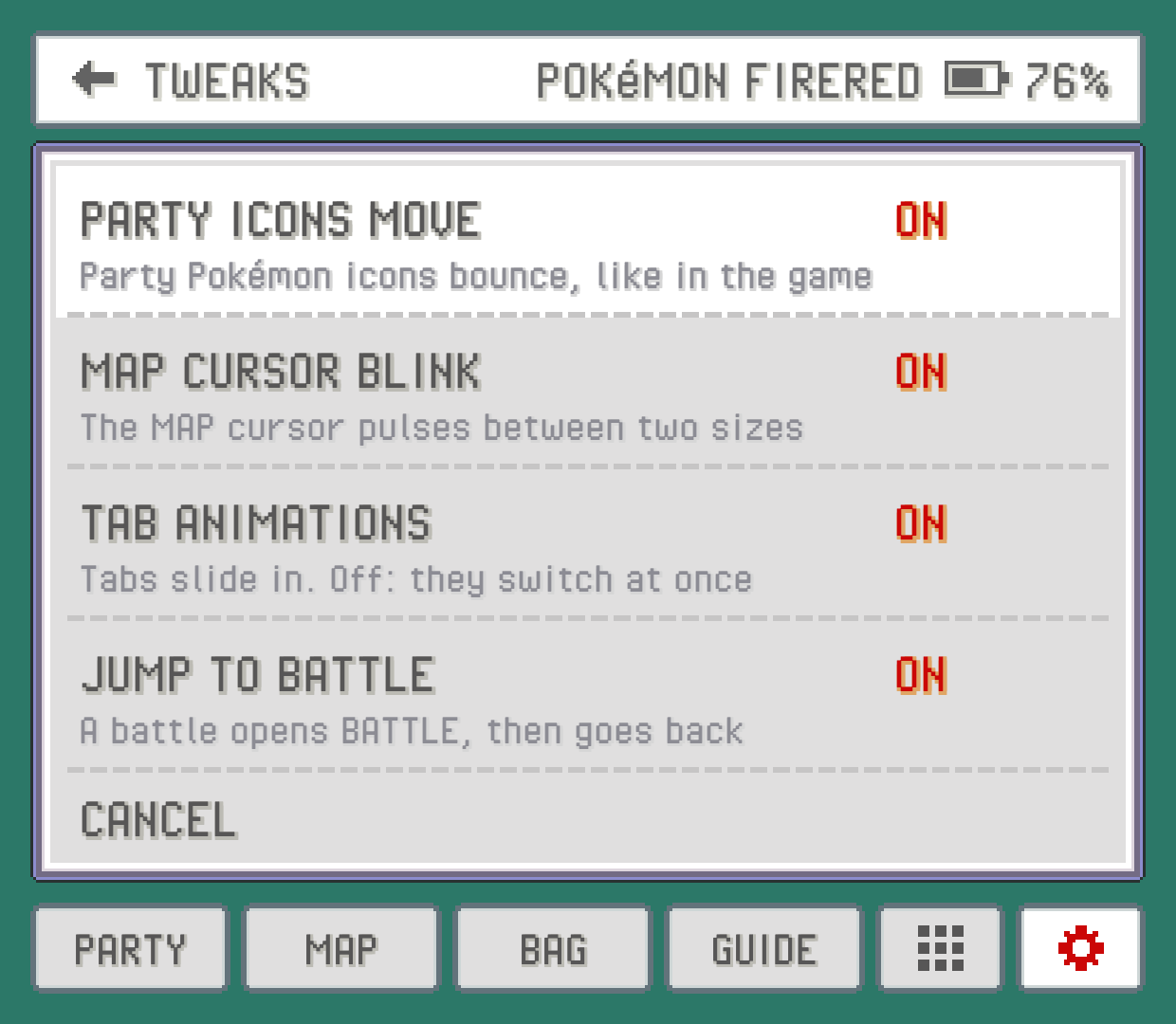
TWEAKS holds small on / off preferences, all on to start with:
| Tweak | What it does |
|---|---|
PARTY ICONS MOVE | Party icons bounce, like in the game. |
MAP CURSOR BLINK | The MAP cursor pulses between two sizes. |
TAB ANIMATIONS | Tabs slide in. Off, they switch at once. |
JUMP TO BATTLE | A battle opens the BATTLE tab, then goes back to where you were. |
LANGUAGE
The app's own text comes in English, Japanese, French, German, Italian, Spanish and Portuguese, with Brazil's and Portugal's Portuguese as two choices. LANGUAGE starts on AUTO, which follows the game's language; pick another and both screens switch at once.
No game came out in Portuguese, so on a phone or handheld set to Portuguese, AUTO shows Portuguese over an English game too. The GUIDE's written pages stay in English in Portuguese.
This only changes PokeDaisy's words (buttons, labels, hints). Pokémon, move and item names stay as your game has them, so a French game shows its French names whatever you pick, and an English game keeps its English ones.
Closing and restarting
At the very end of SETTINGS, under a line, are two buttons:
CLOSE GAMEreturns to your library. WithRESUME GAMESon (top-screen Settings, the default), the game picks up where you left it next time. With it off, anything since your last in-game save is lost, and the confirmation says so.RESTART GAMEreboots the game and reads its save file again from storage. Anything you haven't saved in the game is lost. It's the fix when a save you copied in doesn't show up.
Both ask before they do anything.
On a device with two screens there's also CLOSE COMPANION. It hands the companion's screen back to Android while the game keeps running, so you can use another app there (the top screen with SWAP SCREENS on). Press BACK on the game to bring the companion back. With SWAP SCREENS on, BACK opens it over the game instead, and OPEN COMPANION at the bottom of its SETTINGS puts it back on the top screen.
Something wrong or missing here? Edit this page on GitHub or tell us.